Configuring Genesis Start
This page covers how to add Genesis Start to a project and how to change the way it runs your application. Everything here applies both to the desktop window and to headless mode.
Enabling Genesis Start
Any project created with Genesis Create or genx init already has Genesis Start enabled (Genesis Create uses genx to set up the project), so you can skip the rest of this section. The steps below are for a project that came from neither. It can use Genesis Start if it has:
- the simplified project structure
- the Genesis Gradle Settings plugin
To enable it, you need to change the build file.
Amending the build file
The plugin version is declared once, in server/gradle.properties:
startVersion=1.0.0-beta4
In server/settings.gradle.kts, declare the plugin in the pluginManagement block:
pluginManagement {
    val startVersion: String by settings

    plugins {
        // other plugins
        id("global.genesis.genesis-start-gui") version startVersion
    }
}
In server/build.gradle.kts, apply the plugin without a version:
plugins {
    // other plugins
    id("global.genesis.genesis-start-gui")
}
In the same file, add google() to the repositories block under allprojects:
allprojects {
    repositories {
        // other repositories
        google() // <- add this
    }
}
This is the only place you need google(). The libraries the window is built with (Compose Multiplatform and AndroidX) are resolved at runtime, and Gradle looks for them in the allprojects repositories. If google() is missing there, genesisStart fails with an error about missing androidx.compose.* or androidx.lifecycle.* artifacts, and nothing in the error mentions Genesis Start. You need this even if you only use headless mode.
The standalone plugin
If you'd rather not add google() to your build, use global.genesis.genesis-start-gui-standalone instead. It bundles those libraries into a single jar, so your build doesn't need to download them.
Change the id in both places it appears. In server/settings.gradle.kts:
pluginManagement {
    val startVersion: String by settings

    plugins {
        // other plugins
        id("global.genesis.genesis-start-gui-standalone") version startVersion
    }
}
And in server/build.gradle.kts:
plugins {
    // other plugins
    id("global.genesis.genesis-start-gui-standalone")
}
Its tasks have a -standalone suffix (genesisStart-standalone, writeStartScript-standalone). Everything else, including the genesis.start.* properties, is the same.
You might see the plugin ids global.genesis.genesis-launcher-gui in older projects. These run the same code under older names (the genesisLauncher task, genesis.launcher.* properties). They are only kept for existing projects and will be removed, so don't use them for anything new.
Process profiles
A process profile controls how your application's services are grouped into processes. Choose one from the Process Profile menu in the window, or with the REST API in headless mode.
- Dev Compact groups as many services as possible into as few processes as possible, which saves processing power and memory. This is the recommended option for previewing your application locally.
- Compact groups services into fewer processes, but in a way that would still run in a cluster.
- Production runs processes as your project's configuration defines them. See process configuration for details.
If you need to cut down on memory, choose Dev Compact before you start any processes.
When you change profile, Genesis Start reloads the project overview for that profile, so the list of processes and scripts changes to match.
You can only change profile when nothing is running. While any process is running, starting or stopping (and that includes utilities, scripts and build tasks), the Process Profile menu items are disabled, and the REST API refuses the switch with 409 Conflict. Stop All doesn't stop utilities or running scripts, so stop those on their own first.
System definition property overrides
Genesis Start lets you override Genesis system definition properties locally. This means you can adjust configuration (such as the database or ports) without changing your project's system definition.
Where to put override files
- User level (recommended for settings you share across projects):
~/.genesis/development-system-definition.properties~/.genesis/{service_name}-system-definition.properties
- Project level (for settings specific to one project):
<server root>/.genesis/development-system-definition.properties<server root>/.genesis/{service_name}-system-definition.properties
The project's .genesis folder goes in the root of your server project. Use a {service_name} file to override properties for that service only.
Precedence
If the same property is set in more than one file, the highest one in this list wins:
- Project-level
{service_name}-system-definition.properties - User-level
{service_name}-system-definition.properties - Project-level
development-system-definition.properties - User-level
development-system-definition.properties
In other words, project files override user files, and service-specific files override development-system-definition.properties.
Recommendations and version control
-
Use
~/.genesis/for settings you share across projects: put machine-wide values (for example, database host and port, or common credentials) in your home folder, so they apply to every Genesis project on your machine. -
Use the project's
.genesis/for project-specific settings: you can share these with your team by committing the folder to source control. Don't commit values that are specific to your machine, or secrets. -
If you commit the project's
.genesis/folder, consider adding.gitignorerules for sensitive or machine-specific files. For example, to keep your project-leveldevelopment-system-definition.propertiesout of source control while still committing the service-specific files, add this line to the.gitignorein the root of your project:server/.genesis/development-system-definition.properties
Overriding a property for a single run
To override a property for one run only, pass --system-definition-property KEY=VALUE. This takes precedence over all four files above, and over the database connection settings. Repeat the flag to override more than one property. The value is used exactly as you write it, including any trailing spaces.
There's no Gradle property for this flag, so pass it to the start script instead:
build/genesis-start/start.sh --system-definition-property DbHost=jdbc:postgresql://localhost:5433/genesis
Values you pass with --system-definition-property are visible on the command line of the Genesis Start process, so other users on the same machine can read them with ps. Don't use it for credentials such as DbPassword. Set those through the database connection settings instead, which are passed as environment variables.
Seeing which overrides are in effect
Genesis Start shows the overrides in effect for the running application. They appear in the System definition overrides section of the Application view, and as systemDefinitionOverrides in GET /api/application-info and the MCP get_application_info tool.
The list covers overrides from the command line (--system-definition-property), the project's properties files and the home folder's properties files. When the same key is set in more than one place, only the winning value is listed: the command line wins over the project file, and the project file wins over the home file. Each entry is labelled with where it came from. Overrides from a {service_name} file apply to that process only, and are listed under its name.
Values for keys containing PASSWORD, SECRET, TOKEN or KEY are masked as ********. If a properties file can't be read, the error is reported (in the view, and in errors in the response) instead of failing the request.
Database connection settings
You can pass your database connection to Genesis Start as Gradle properties, instead of setting it in your project's system definition. Genesis Start passes each one to every Genesis process it starts, as the matching system definition property:
| Gradle property | System definition property |
|---|---|
genesis.start.dbLayer | DbLayer |
genesis.start.dbMode | DbMode |
genesis.start.dbHost | DbHost |
genesis.start.dbUsername | DbUsername |
genesis.start.dbPassword | DbPassword |
genesis.start.dbNamespace | DbNamespace |
genesis.start.dbSqlConnectionPoolSize | DbSqlConnectionPoolSize |
You can set these on the command line (-Pgenesis.start.dbPassword=...), but it's better to put them in your own ~/.gradle/gradle.properties file, so the credentials stay out of the project.
For example, to use a local H2 database, set genesis.start.dbLayer to SQL and genesis.start.dbHost to:
jdbc:h2:file:~/genesis-local-db/{app_name}/h2/test;DB_CLOSE_DELAY=-1;NON_KEYWORDS=VALUE,KEY;AUTO_SERVER=TRUE
Replace {app_name} with the name of your application.
The host, username and password don't appear on the command line of the Genesis Start process. They are passed as environment variables instead (GENESIS_LAUNCHER_DB_HOST, GENESIS_LAUNCHER_DB_USERNAME and GENESIS_LAUNCHER_DB_PASSWORD), so other users on the same machine can't read them with ps. This applies both to genesisStart and to the start script.
These settings have the lowest precedence. Any of the override files that sets the same property overrides them, and a --system-definition-property flag overrides everything.
On a new database, run Bootstrap and Launch before starting processes; see Bootstrap and Launch.
Running several instances side by side
Two projects on one machine
Every process Genesis Start launches is tagged with the Genesis home it belongs to. When Genesis Start starts up, it picks up any of its own processes still running from an earlier run, and ignores processes that belong to a different Genesis home. It also ignores Genesis processes that aren't tagged at all: those started by Genesis Start 0.1.x, or not by Genesis Start. They don't appear in the process list and Genesis Start can't stop them, so stop them yourself before you start Genesis Start. So if you run Genesis Start for two different projects, neither one shows or stops the other's processes. Two instances pointed at the same Genesis home do share their processes. Each instance needs its own restPort (default 8080), set with -Pgenesis.start.restPort=…; see Gradle property reference. The two applications' own ports also clash unless you give one of them a port offset; see Setting the port offset. To run two independent instances of the same application, use a separate checkout of the project for each instance. Each checkout has its own Genesis home and needs its own restPort.
Port offset
Two instances can't both use the default ports. A port offset moves every port an instance uses, so that several can run side by side.
Port offset is an experimental feature. To use it, start Genesis Start with --enable-experimental-features. There's no Gradle property for this flag, so pass it to the start script. Your project's Genesis platform version must also support the feature; if it doesn't, only an offset of 0 is accepted. Support isn't tied to a particular version number: Genesis Start detects it from your project. To check, call GET /api/port-offset, or open View → Application Info… in the desktop window and look at its Ports section.
How it works:
- The offset is a number from 0 to 99. It is 0 every time Genesis Start starts, and isn't saved.
- At offset 0, nothing changes: every process uses the ports your application configures.
- At any other offset, Genesis Start assigns every service port itself, counting up from
20000 + offset × 100(so offset 2 starts at 20200). Each service also uses its port + 10000 for ZeroMQ. - The ports reached from outside the instance (
ClusterPort,DaemonServerPort,DaemonHealthPort,RouterWebPort,RouterSocketPort,McpPortand the two ZeroMQ proxy ports) move up from their usual values by the offset. The Web UI follows the offset too. - These ports are applied on top of any system definition overrides. A
.ktsor config file that hard-codes another service's port, rather than looking it up, doesn't follow the offset. Nor does an MCP server whose-mcp-server.ktsfile setsrouterHttpPort.
Setting the port offset
Before you change the offset, stop all of this instance's processes and its Web UI. If you run each instance with the REST API enabled, also give each its own restPort: the offset moves your application's ports, not Genesis Start's own REST port.
In the window
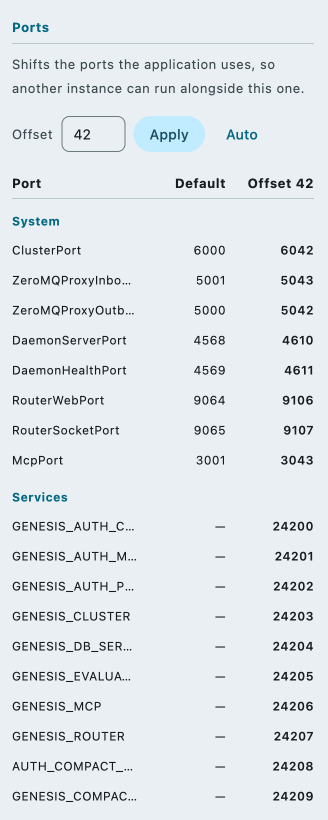
Open the Application view (the ⓘ button in the toolbar, or View → Application Info…). In its Ports section:
- type an offset from 0 to 99 and click Apply, or
- click Auto to have Genesis Start choose the first free offset and apply it straight away.
The port table below the editor shows the ports for the value you have typed, before you apply it: each port's platform default (service ports have none, so they show "—") and the port it gets at that offset. If the change is refused, the reason appears under the editor, with the same error code the REST API returns.
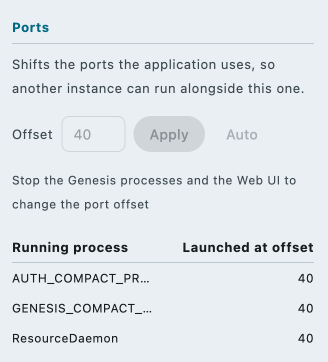
The editor is disabled, with the reason shown under it, while any of these is true:
- the project overview hasn't loaded yet;
- port offset is experimental in your Genesis version and you didn't start Genesis Start with
--enable-experimental-features; - your project's platform version doesn't support a non-zero offset;
- any Genesis process or the Web UI is running. The view then lists the running processes and the offset each was started with.
With the REST API
To set the offset, call PUT /api/port-offset with the value you want:
{"offset": 20}
Or let Genesis Start choose one:
{"offset": "auto"}
With "auto", Genesis Start tries 2, 4, 6 and so on up to 98, and takes the first offset whose ports are all free. It steps by 2 because some default ports come in adjacent pairs, so two instances one offset apart would clash.
Then start your processes as usual. GET /api/port-offset shows the current offset, the full list of ports, and whether a non-zero offset is available (and if not, why).
When Genesis Start restarts
If Genesis Start restarts and picks up its own running processes, it uses the offset they were started with. If they were started with different offsets, it resets to 0 and refuses to start anything (with 409 MIXED_PORT_OFFSETS) until you have stopped them all.
Genesis Start also goes back to offset 0 by itself when a non-zero offset is no longer allowed: for example, you restarted it without --enable-experimental-features, or a sync or profile change loaded a project overview that doesn't support the feature. It waits until no Genesis process or Web UI is still using the old offset, then resets. For the same reason, it refuses to set a non-zero offset while the current project overview doesn't support one (PORT_OFFSET_NOT_SUPPORTED or EXPERIMENTAL_FEATURES_DISABLED).
These are the errors you might see. The Swagger UI has the full list.
| Error | Meaning |
|---|---|
422 PORT_OFFSET_NOT_SUPPORTED | Your project's platform version doesn't support a port offset. |
422 EXPERIMENTAL_FEATURES_DISABLED | Restart Genesis Start with --enable-experimental-features. |
422 PORT_OFFSET_INVALID | The value isn't a number from 0 to 99, or "auto". |
409 PROCESSES_RUNNING | Stop this instance's processes first. Asking for the offset that is already set always succeeds. |
409 NO_FREE_PORT_OFFSET | "auto" found a port in use at every offset it tried. |
409 PORT_IN_USE | Returned when you start a process: one of the ports for the current offset is already taken. If two instances ask for "auto" at the same moment, they can choose the same offset; ask for "auto" again. |
409 MIXED_PORT_OFFSETS or UNKNOWN_SERVICE_PORTS | Processes picked up from an earlier run disagree about their ports. Stop them all to clear this. |
Seeing the port offset in the window
When the offset isn't 0, the tooltip on the App - <project> header above the process list shows it. The Application view shows the current offset, the ports it gives each service, why a non-zero offset isn't available (if it isn't), and any running process that was started with a different offset (for example, "2 (current is 4)").
If a process was started with a different offset from the current one, its row in the process list has an offset N badge.
Gradle property reference
You can set each of these properties on the command line (for example, -Pgenesis.start.restPort=18080) or in a gradle.properties file: your project's, or your own ~/.gradle/gradle.properties for anything personal such as credentials. The genesis.start. prefix is optional (restPort=18080 also works); if you set both forms, the one with the prefix wins.
The properties apply to genesisStart, and to writeStartScript, which builds them into the script it writes.
| Property | Default | What it does |
|---|---|---|
genesis.start.headless | false | Runs without a window, driven over REST. See headless mode. -Pgenesis.start.headless on its own counts as true. |
genesis.start.autoLaunch | false | Runs Bootstrap and Launch as soon as the window opens. Desktop window only. -Pgenesis.start.autoLaunch on its own counts as true. |
genesis.start.restEnabled | false | Starts the REST API and the MCP server. You need this for headless mode. |
genesis.start.restPort | 8080 | The REST API's port. Ignored unless restEnabled=true. |
genesis.start.restHosts | 127.0.0.1 | The addresses the REST API listens on, comma-separated (for example, 127.0.0.1,172.17.0.1). See Security. Ignored unless restEnabled=true. |
genesis.start.restBasePath | /api | The path the REST API is served under. Ignored unless restEnabled=true. |
genesis.start.restMaxRequestBodyBytes | 50 MiB | The largest request body the REST API accepts. Ignored unless restEnabled=true. |
genesis.start.dbLayer, dbMode, dbHost, dbUsername, dbPassword, dbNamespace, dbSqlConnectionPoolSize | Database connection settings passed to every Genesis process. | |
genesis.java.version | 17 | The Java version Gradle uses to run Genesis Start. |
genesis-start.renderApi | The graphics backend the window uses (for example, OPENGL). Defaults to OPENGL on Windows under Citrix; otherwise it is chosen automatically. |
--system-definition-property, --enable-experimental-features and --rest-api-version aren't available as Gradle properties. Pass them to the start script instead.